

We’ll step you through the simple process and you can streamline all those camp and school forms from now on! (No app download needed!)
Forms, forms and more forms. Especially for camp and school, but we always seem to be filling out forms. And unless it’s an online form, you’re probably scanning it (or taking a semi-decent picture of it) and emailing it back where it needs to go.
Did you know that the Notes app on your iPhone can scan your document and create a pdf file for you? Now you do! And it can even handle multiple pages! Note: This works best when there’s a distinct contrast between the document and the surface it’s on.
1) Open the Notes app. Select iCloud notes.
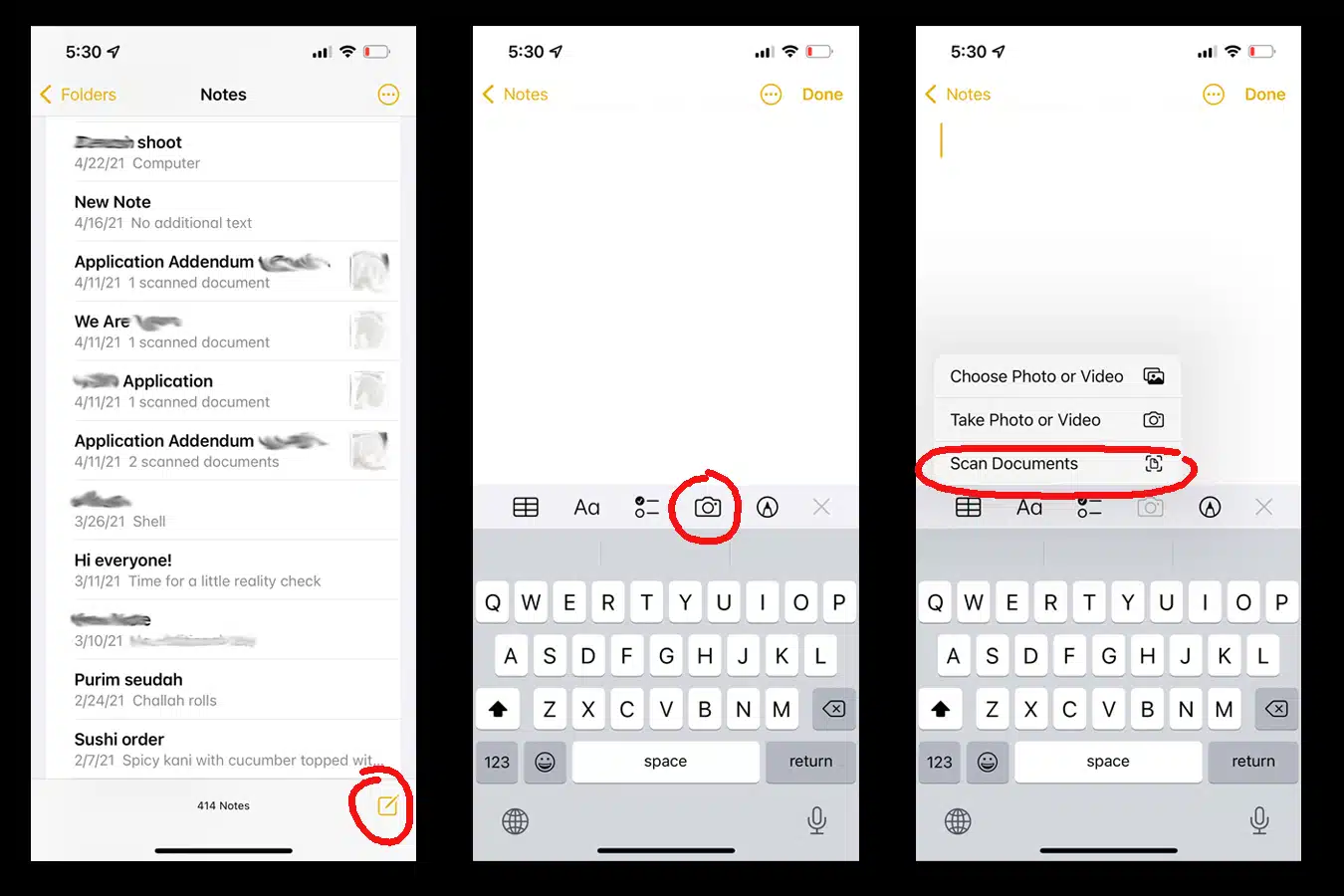
2) Tap the new note icon, tap the camera and select scan documents.
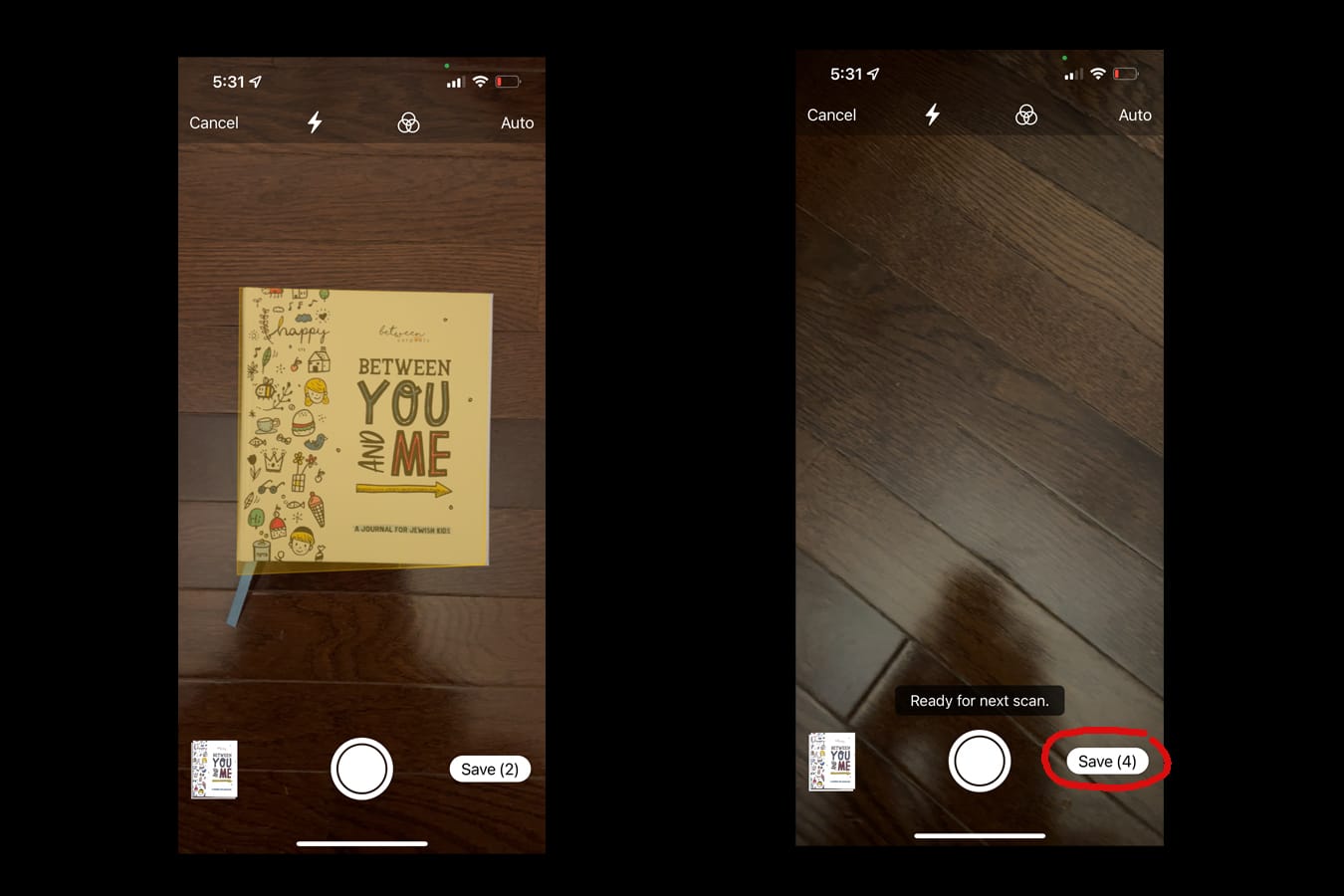
3) When the camera finds the document, it’ll take a picture of just the document. At that point, you can save or continue scanning for a multi-page PDF document.
4) Tap save.
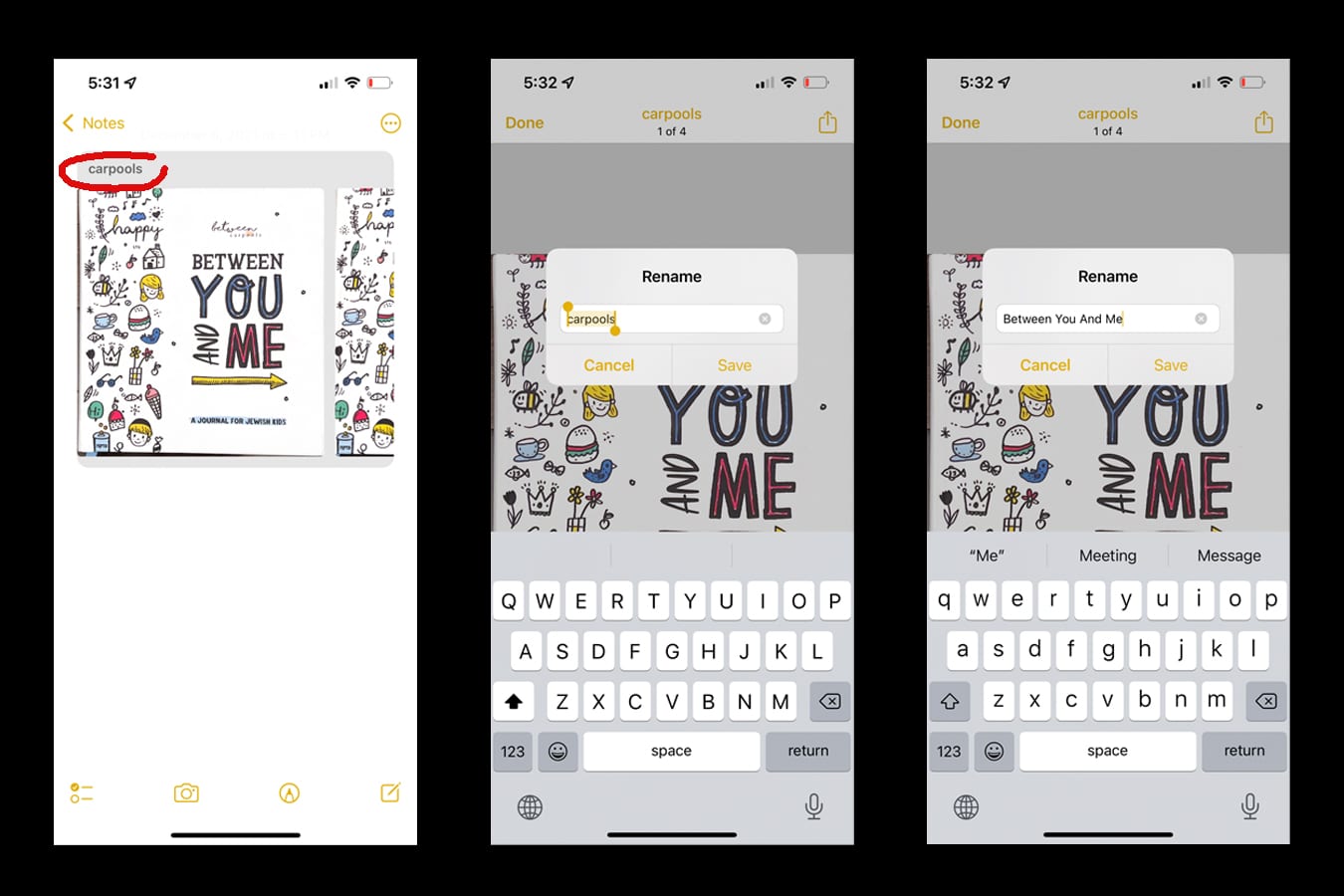
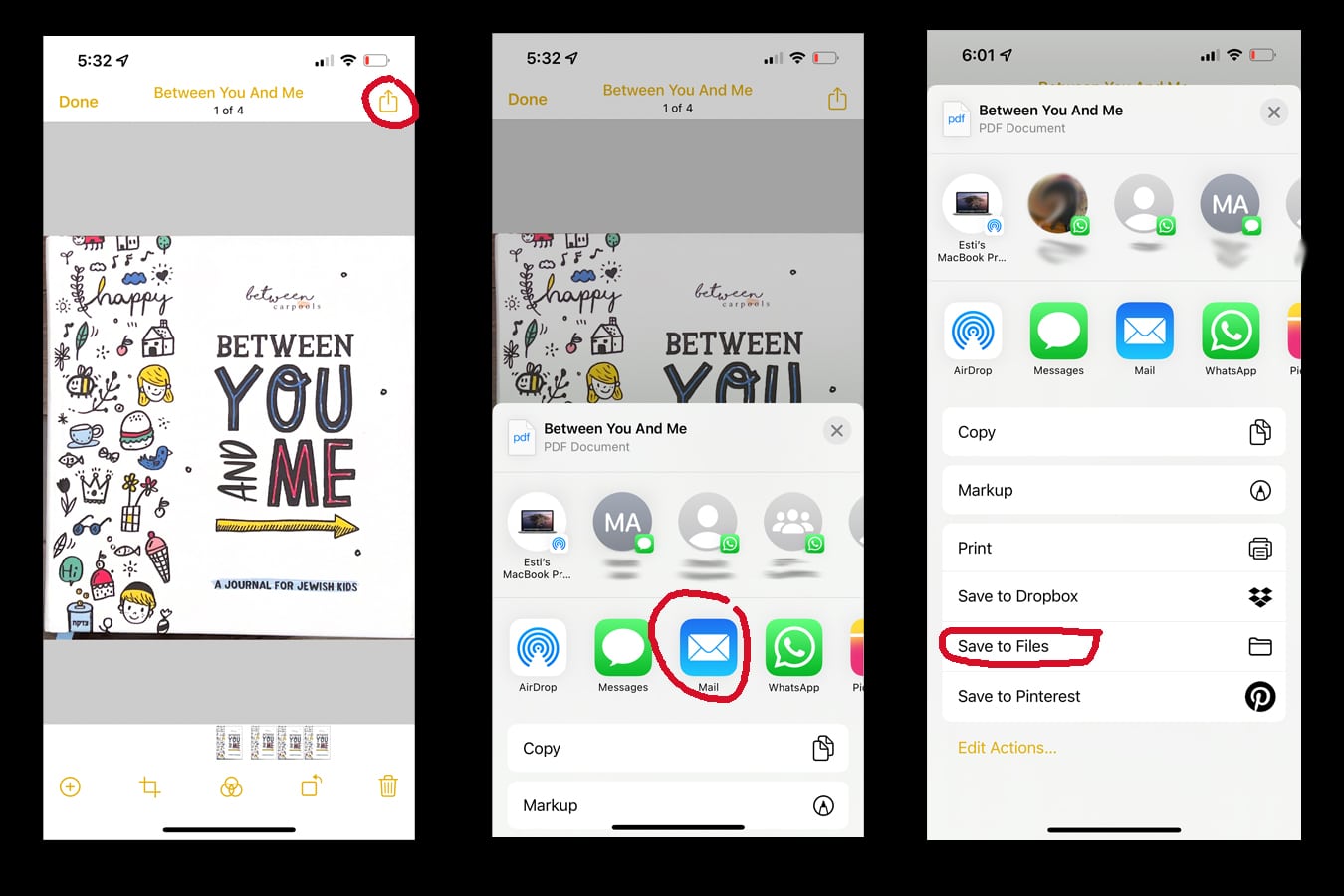
5) The filename will automatically be populated with words from the document. Tap the name if you’d like to change it.










|